How to Make a Story Trailer With AI Image-to-Video
Nobody clicks a wall of text on TikTok, Shorts, or Reels. A thirty-second trailer — five animated scenes, a line of narration, a title card — is the difference between a story that reaches your existing readers and one that finds new ones. This guide shows how to get from a finished story to that trailer using still images and an AI image-to-video tool, with no filming and no editing experience.
Why Stills Are the Right Starting Point
Generating video straight from a text prompt gives you a different character in every clip. Generating video from a still image fixes the character, the setting, and the colour palette first, then adds motion. For a story trailer that consistency is the whole point: viewers need to recognise Pip in scene five as the Pip they met in scene one.
It also splits the work into two steps you can control separately: get the images right (cheap, fast to iterate), then animate only the ones you have already approved.
Step 1: Pick Five Scenes
A trailer is not a summary. It is a promise. Five beats are enough: a hook, the world, the moment things change, the threat, and the title card. Keep the ending out of it entirely.
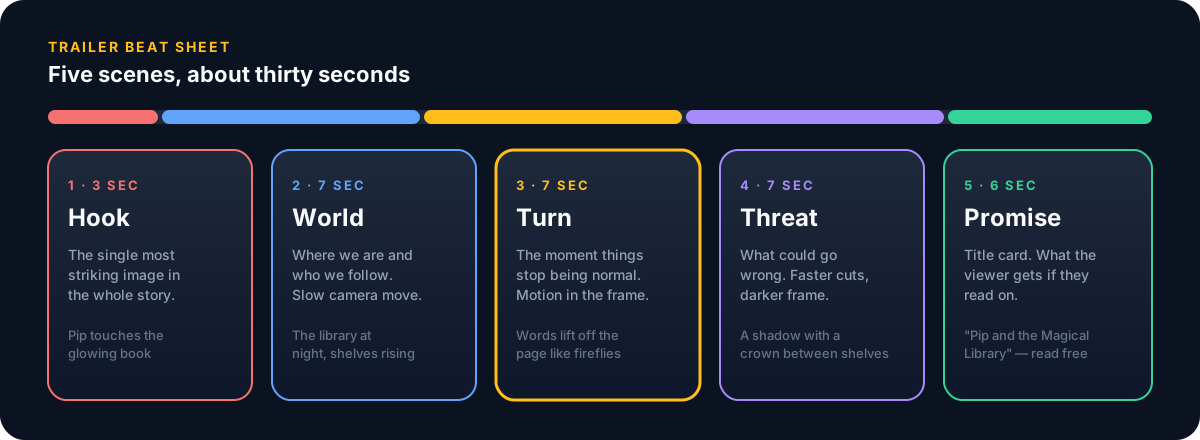
- Lead with the single most striking image, not the chronological beginning. You have three seconds before a thumb scrolls.
- Choose scenes that differ visually: one wide, one close, one dark, one bright. Five similar frames read as one long frame.
- Write the narration line for each beat now — one sentence, under ten words. It will shape which image you generate.
- Total length: 25–35 seconds. Longer trailers lose viewers before the title card.
Step 2: Generate One Still Per Scene
If you wrote the story with Story-AI, the storyboard generator turns each scene into an image in one art style, in 9:16 if you choose. Characters can look different from scene to scene, so pick the five that match your beat sheet and regenerate any that drift. If you are using another image tool, the rules for trailer-ready stills are the same:
Trailer-ready
- Vertical 9:16 if the target is Shorts, Reels or TikTok; 16:9 only for YouTube proper.
- One clear subject with empty space around it — the motion needs somewhere to go.
- Same art style and palette across all five. Reuse the exact style prompt.
- No text baked into the image. Titles go on later, as a layer.
Will not animate well
- Crowds, multiple faces, or hands doing detailed things.
- Busy backgrounds with fine repeating detail (brick, text, foliage).
- Extreme close-ups of faces — small warps become very visible.
- Split panels or collage layouts.
Step 3: Animate Each Still
Upload each still to an image-to-video tool and describe the motion. We use ImgVeo for this: paste an image, write a short motion prompt, and it returns a few seconds of video that keeps the original frame as its starting point — which is exactly what makes the five clips feel like one film. The single most useful rule, whatever tool you use, is to ask for one motion per clip:
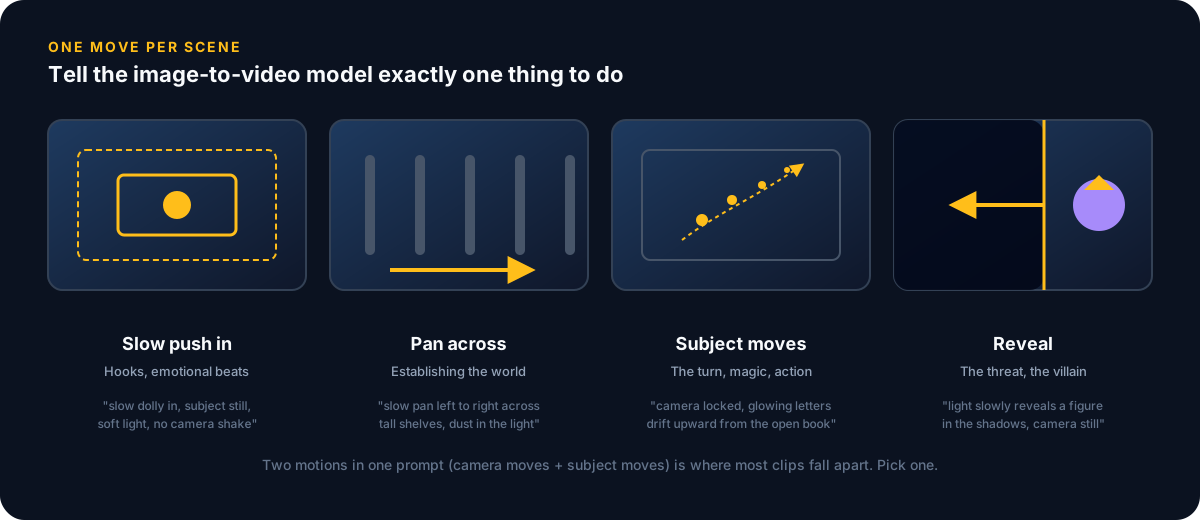
- Describe the motion, not the image. The model already sees the image; "a mouse in a library" adds nothing, "slow push in toward the mouse" does.
- Ask for 4–6 seconds per clip. You will trim to 3–7 seconds anyway, and longer generations drift further from the still.
- Generate two or three variations of the hook and the turn — the two beats that carry the trailer — and only one of the others.
- Add "no camera shake, no morphing, consistent character" to every prompt. It costs nothing and removes the most common failures.
When a clip warps: don’t re-prompt five times. Go back to the still, simplify the background or move the subject away from the frame edge, and animate again. Nine times out of ten the problem is the image, not the prompt.
Step 4: Cut, Narrate, Title
Drop the five clips into any editor — CapCut or the built-in TikTok editor is enough — in beat-sheet order. Then:
| Layer | What to do | Why |
|---|---|---|
| Cuts | Trim each clip to its best 3–7 s; cut on motion, not on stillness | Hides the moment AI motion starts to drift |
| Narration | One line per beat, generated with a text-to-speech voice | Carries the story when viewers watch muted — add captions too |
| Music | One royalty-free track, ducked under the voice | Five clips with different implied tempo need one rhythm |
| Title card | Story title + "read free" + your site, 3 s, last | It is the only call to action; everything before it earns it |
For the narration line, the audiobook guide covers voice and pacing; if the trailer has dialogue between characters, the multi-voice guide applies. Export at 1080×1920, 30 fps, and post the same file everywhere — the platforms do not reward re-encoding.
The Short Version
- Pick five beats — hook, world, turn, threat, title — and write one narration line each.
- Generate one consistent, uncluttered 9:16 still per beat.
- Animate each still with an image-to-video tool such as imgveo.com, one motion per clip, 4–6 seconds.
- Cut to 30 seconds, add narration, captions, one music track, and a title card.
Need a story to trail? The AI story generator will give you one in under a minute.
About Story-AI Team
Story-AI is a small, independent product. These guides are written by the people who build it, from what we learn while making an AI story generator.
Continue Reading
How to Turn Your AI-Generated Story Into an Audiobook
A four-step text-to-speech workflow for writers: finish the draft, prepare a narration script, generate the voice, and publish chapter by chapter.
Character DevelopmentGive Every Character Their Own Voice: Multi-Voice Narration for AI Stories
How to cast, generate, and assemble a distinct AI voice for each character in your story, from a one-page casting sheet to a finished scene.
Ready to Create Your Own Stories?
Try Story-AI today and experience the future of AI-powered storytelling firsthand.